




Streaming entertainment has changed how we watch our favorite shows and movies. Many people now prefer digital television services for their flexibility and vast content libraries. If you want to elevate your home viewing, learning the proper IPTV on MAG Box configuration is a smart move.
Getting your hardware ready might seem tricky at first, but it is quite simple with the right steps. A smooth MAG Box setup ensures that you enjoy high-quality streams without constant buffering or technical interruptions. Taking the time to configure your device correctly will save you from future headaches.
This guide provides a clear path to get your system running in no time. We will walk through every essential setting to help you unlock the full potential of your media player. Let’s get started and transform your living room into a modern entertainment hub today.
Understanding the Basics of IPTV on MAG Box
IPTV and MAG Box are key to a great streaming experience. IPTV lets you watch media on your device through the internet. It’s more flexible and feature-rich than traditional TV.
The MAG Box is great for IPTV because it’s versatile and works with many formats. It connects to various networks, making it perfect for streaming IPTV.
To get IPTV on a MAG Box, let’s look at the main parts:
| Component | Description | Importance |
|---|---|---|
| IPTV Service Provider | Offers IPTV services, including live TV, movies, and on-demand content. | Essential for accessing IPTV content. |
| MAG Box Device | A device that connects to your TV and streams IPTV content. | Critical for receiving and decoding IPTV streams. |
| Internet Connection | A stable internet connection is required for streaming IPTV content. | Essential for smooth and uninterrupted streaming. |

When setting up IPTV on your MAG Box, knowing these parts is key. A stable internet connection is crucial for smooth streaming. The MAG Box device connects your TV to the IPTV service provider.
Understanding these basics helps you set up IPTV on your MAG Box. It also helps with troubleshooting any issues.
Essential Hardware and Network Requirements
Before you start with IPTV on your MAG Box, it’s important to know what you need. You’ll need the right hardware and a good network. A great IPTV experience depends on these two things.
Checking Your MAG Box Model Compatibility
To make sure your MAG Box works with IPTV, check its model. Each model has its own features and performance. Look in your device’s manual or on the manufacturer’s website to see if it’s compatible.
Optimizing Your Home Network for Streaming
To get the best out of IPTV, your network needs to be top-notch. A fast and stable internet connection is key. Here are some tips to improve your network:
- Choose a router that supports the latest Wi-Fi standards.
- Make sure your internet plan can handle IPTV streaming.
- Try to reduce interference from other devices on your network.
| IPTV Quality | Recommended Bandwidth | Minimum Internet Speed |
|---|---|---|
| SD (Standard Definition) | 3 Mbps | 5 Mbps |
| HD (High Definition) | 8 Mbps | 10 Mbps |
| 4K (Ultra High Definition) | 25 Mbps | 30 Mbps |

By following these tips, you’ll be ready for a top-notch IPTV experience. Make sure your MAG Box and network are ready for it.
Preparing Your MAG Box for Configuration
To start using IPTV on your MAG Box, preparation is key. You need to take a few important steps. This will make sure your device is ready for a great viewing experience.
Connecting the Device to Your Television
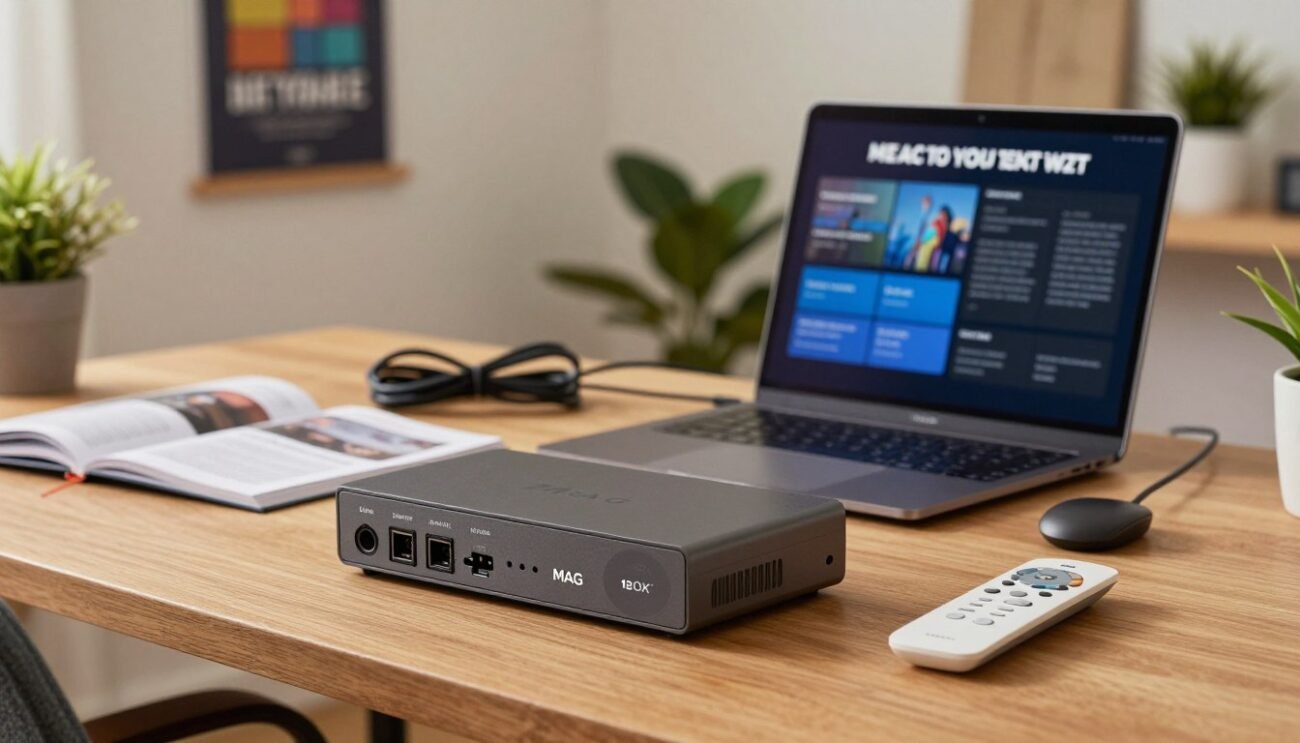
The first step is to connect your MAG Box to your TV. Use an HDMI cable for high-quality video and audio. Make sure both devices are off before connecting to avoid damage.
After connecting, turn on your TV and MAG Box. You should see the MAG Box interface on your TV. If not, check that you’ve picked the right HDMI input on your TV.
Establishing a Stable Internet Connection
A stable internet connection is key for smooth IPTV streaming. You can connect your MAG Box via wired Ethernet or Wi-Fi. An Ethernet cable is better for a stable connection.
If you’re using Wi-Fi, make sure your MAG Box is on your router’s network. Go to your MAG Box’s network settings, pick your Wi-Fi network, and enter your password.
Check that your internet connection is stable and fast enough for IPTV streaming. Your service provider will tell you the minimum speed needed.
Accessing the System Settings Menu
To set up IPTV on your MAG Box, you need to get into the system settings menu. This step lets you change settings that make IPTV work better.
Navigating the User Interface
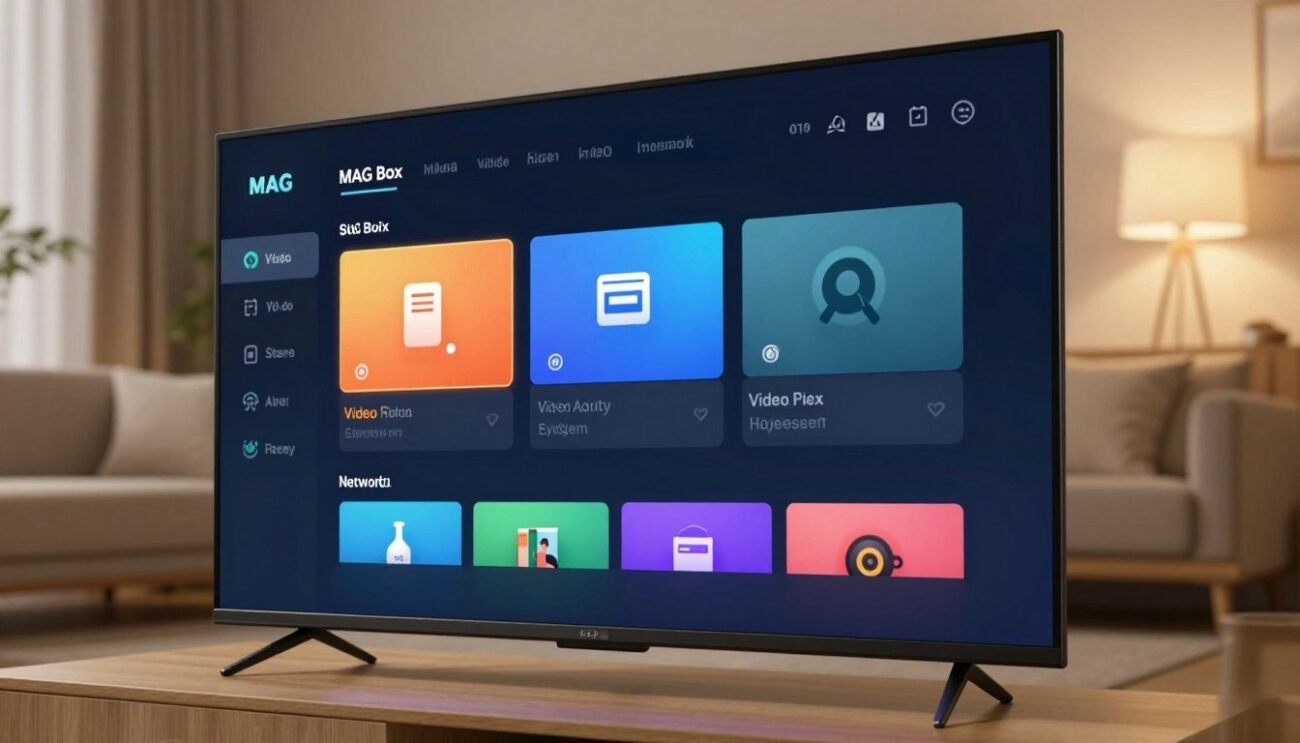
Using your remote, find the “Settings” or “System Settings” in the MAG Box menu. The name might change based on your MAG Box model.
Tip: Get to know your remote control well. It helps you move around the menu easily.
Updating Firmware to the Latest 2026 Version
It’s important to update your MAG Box firmware to 2026. This brings new features and security updates. Look for “System Update” or “Firmware Update” in the settings.
Updating involves checking for new updates, downloading them, and installing. This keeps your MAG Box working well with the latest IPTV services.
| Firmware Version | Release Date | Key Features |
|---|---|---|
| 2026.01 | January 2026 | Improved IPTV streaming stability, Enhanced security features |
| 2026.02 | February 2026 | Support for 4K streaming, Bug fixes for EPG loading |
| 2026.03 | March 2026 | User interface enhancements, Additional channel support |
Regular firmware updates are crucial for maintaining the performance and security of your MAG Box. Keeping your device updated means a better IPTV experience.
Configuring the Portal Settings
Setting up the portal settings on your MAG Box is key for a smooth IPTV experience. This process involves a few important steps. These steps make sure your device connects to the right IPTV service.
Locating the Servers Menu
To begin, find the Servers menu on your MAG Box. It’s usually in the settings or configuration area. Look through the menu until you see the Servers or Portal Settings section.
Entering Your IPTV Service Provider URL
After finding the Servers menu, enter the URL from your IPTV service provider. This URL is vital. It links your MAG Box to the IPTV service, letting you watch different channels and content.
Here’s a simple table to help you understand the process:
| Step | Description |
|---|---|
| 1 | Navigate to the Servers menu on your MAG Box. |
| 2 | Enter the IPTV service provider URL. |
| 3 | Save the settings to connect to the IPTV service. |
By following these steps, you can set up the portal settings on your MAG Box. Then, you can enjoy uninterrupted IPTV streaming.
Key Takeaways:
- Locate the Servers menu in your MAG Box settings.
- Enter the URL provided by your IPTV service provider.
- Save the settings to establish a connection.
Managing Portal Profiles and Multiple Subscriptions
Managing multiple IPTV subscriptions is now easier with the MAG Box. It has advanced portal management. This is great for users with many IPTV services or who want to switch providers.
The MAG Box lets you create and manage many portal profiles. This makes it easy to access different IPTV services without reconfiguring your device. It’s perfect for households with different viewing tastes or for users with multiple IPTV services.
Adding Secondary Portals
To add a secondary portal, go to the portal settings menu on your MAG Box. You’ll find the option to add new portal profiles. Enter the required details for your secondary IPTV service provider, like the portal URL and any needed authentication details.
After you’ve entered the information, save the new portal profile. Your MAG Box will let you switch between your primary and secondary IPTV services easily.
Switching Between Different IPTV Services
Switching between different IPTV services on your MAG Box is simple. After adding multiple portal profiles, you can switch between them easily. Navigate to the portal settings menu and select the desired portal profile from the list of configured services.
The MAG Box will then connect to the chosen IPTV service. You can then access its channel lineup and content. This feature is great for comparing different IPTV services or for getting more content.
Configuring Video and Audio Output Settings
For a top-notch entertainment experience, setting up your MAG Box’s video and audio settings is key. Getting these right lets you enjoy your favorite shows and movies in the best quality.
First, head to the settings menu on your MAG Box. There, you can tweak both video and audio settings to fit your taste and what your equipment can handle.
Adjusting Resolution for 4K Displays
If you have a 4K display, it’s important to set the resolution right. This ensures you get the best picture quality. To do this, go to the video settings and pick the resolution that matches your display’s native resolution.
Steps to adjust the resolution:
- Navigate to the video settings menu.
- Select the resolution option.
- Choose the 4K resolution that matches your display (e.g., 3840 x 2160).
- Save your changes.
Make sure your MAG Box is hooked up to your 4K display with an HDMI cable that supports 4K. This lets you enjoy the full benefits of the higher resolution.
Setting Up Surround Sound and Audio Passthrough
For a truly immersive audio experience, setting up surround sound and audio passthrough is crucial. This means configuring your MAG Box to send audio in a format your home theater system can handle.
To set up surround sound:
- Access the audio settings menu.
- Select the audio output format (e.g., Dolby Digital, DTS).
- Enable audio passthrough if your home theater system supports it.
- Save your settings.
By following these steps, you can enjoy a more immersive viewing experience with high-quality audio.
Managing Channels and Electronic Program Guide
To enjoy your IPTV service on MAG Box, managing channels and the EPG is key. A good channel list and EPG make watching TV better. They let you easily find your favorite shows and get all the details.
Customizing Channel Lists and Favorites
It’s easy to change your channel lists and favorites. This lets you put your favorite channels first. Just go to the channel list menu on your MAG Box to add or remove channels.
Steps to Customize Channel Lists:
- Access the channel list menu on your MAG Box.
- Select the channel you wish to add to your favorites.
- Use the ‘Add to Favorites’ option to include the channel in your list.
- To remove a channel, select it and choose ‘Remove from Favorites.’
Troubleshooting EPG Loading Issues
Sometimes, the EPG won’t load right. This could be because of network problems or EPG data issues. First, make sure your internet is working well.
| Issue | Troubleshooting Step |
|---|---|
| EPG Not Loading | Check internet connection stability. |
| EPG Data Incorrect | Restart your MAG Box to refresh the EPG data. |
| EPG Loading Slowly | Check for firmware updates for your MAG Box. |
If problems keep happening, try restarting your MAG Box. Or check for firmware updates. These steps can fix EPG issues.
Advanced Network and Security Configurations
For a smooth and safe IPTV experience, setting up your MAG Box’s network is key. This includes a few important steps. They boost your streaming quality and keep your data safe.
Setting Up a VPN for Secure Streaming
A VPN (Virtual Private Network) encrypts your internet, making your IPTV streaming safe and private. To set up a VPN on your MAG Box, pick a VPN service that works with MAG Box devices or your device’s OS.
Here’s how to set it up:
- Download and install the VPN app on your MAG Box, if available.
- Launch the VPN app and log in with your credentials.
- Choose a server location that’s stable and close to you to cut down on latency.
- Connect to the VPN and check your IP address to make sure it’s working.
Using a VPN also lets you access content blocked in your area by hiding your IP address. But, make sure your VPN service is okay with your IPTV provider’s rules.
Configuring Static IP Addresses
Setting a static IP address on your MAG Box keeps your connection stable to your IPTV service. A static IP doesn’t change, so you won’t lose connection or need to reconnect often.
| Step | Description |
|---|---|
| 1 | Access your MAG Box’s network settings menu. |
| 2 | Select the option to configure the IP settings manually. |
| 3 | Enter the static IP address, subnet mask, gateway, and DNS server details given by your IPTV service provider or network admin. |
After setting these up, your MAG Box will keep a steady connection to your IPTV service. This makes your viewing experience better.
Troubleshooting Common Connection Errors
IPTV connection issues on MAG Box devices can be frustrating. Most problems have simple solutions. When you’re watching your favorite show, connection errors can be really annoying. This section will help you with common issues and their fixes.
Resolving Page Loading Errors
Page loading errors can happen for many reasons. This includes network issues or problems with the IPTV service provider’s servers. To fix these errors, start by checking your internet connection. Make sure your MAG Box is connected to the internet and your network is stable.
- Restart your MAG Box and your router to refresh the connection.
- Check for any firmware updates for your MAG Box to ensure it’s running the latest software.
- Verify that your IPTV subscription is active and that you’re using the correct portal URL.
Fixing Buffering and Playback Stuttering
Buffering and playback stuttering often relate to internet bandwidth or server load. To solve these issues, consider the following steps:
- Check your internet speed to ensure it meets the minimum requirements for IPTV streaming, typically at least 10 Mbps for HD content.
- Reduce the number of devices connected to your network to allocate more bandwidth to your MAG Box.
- If you’re using Wi-Fi, try switching to a wired Ethernet connection for a more stable link.
Checking Server Status
Sometimes, the issue might not be on your end but with your IPTV service provider’s servers. Checking the server status can help you determine if the problem is widespread or isolated to your setup.
To check the server status:
- Visit your IPTV provider’s official website or support page.
- Look for server status updates or maintenance notifications.
- Contact their customer support if you can’t find the information you need.
Clearing Cache and Temporary Files
Over time, your MAG Box can accumulate cache and temporary files that might cause playback issues. Clearing these files can often resolve the problem.
To clear cache and temporary files:
- Go to your MAG Box settings menu.
- Navigate to the storage or application management section.
- Select the option to clear cache or temporary files.
Parental Controls and Content Restrictions
Keeping your family safe while watching IPTV on your MAG Box is key. With so much content out there, it’s vital to control what everyone sees. This ensures a safe and enjoyable viewing experience for everyone.
Parental controls on MAG Box help you create a safe space for watching. You can block certain channels or content types. This way, you can make sure your IPTV service is used the right way.
Setting Up PIN Codes for Channels
One way to control what you watch is by using PIN codes for channels. This is great for keeping mature or adult content out of reach.
- Navigate to the Settings menu on your MAG Box.
- Select Parental Controls or a similar option.
- Choose the channels you want to lock and set a PIN code.
- Confirm the PIN code to make sure it’s set right.
Restricting Access to Specific Categories
You can also block certain content types, not just channels. In the parental controls menu, pick categories like “Adult Content” or “Mature Themes” to block.
| Category | Description | Restriction Level |
|---|---|---|
| Adult Content | Content for adults only, with explicit material. | High |
| Mature Themes | Content not good for young viewers because of themes or language. | Medium |
| General Audiences | Content okay for all ages. | Low |
Using these parental controls makes your MAG Box viewing experience better and safer for everyone.
Maintenance Tips for Long-Term Performance
Keeping your MAG Box in good shape is key for great IPTV streaming. Regular care makes sure your device works well, giving you non-stop streaming.
Here are some tips to keep your MAG Box running smoothly. Regular care boosts performance and makes your device last longer.
Performing Periodic Factory Resets
Doing factory resets regularly is important. It resets your device to its original state. This removes any bad data that might slow it down.
To reset, go to settings, then “System” or “Device”. Follow the steps to reset. This will delete all saved data, so back up important stuff first.
Managing Internal Storage and App Data
It’s also crucial to manage storage and app data. Your device collects cache and app data over time. This can fill up space and slow it down.
Clearing out unwanted data and removing unused apps helps. Go to storage settings to delete or uninstall apps you don’t need.
By following these tips, your MAG Box will keep streaming great IPTV. You’ll enjoy a better viewing experience.
Conclusion
Setting up IPTV on your MAG Box in 2026 is easy if you follow the right steps. This guide will help you understand IPTV basics, set up your device, and keep it running smoothly. You’ll enjoy a great IPTV experience.
With a good 2026 IPTV setup, your MAG Box will work its best. You can watch lots of channels, customize your viewing, and have a stable connection.
Keeping your MAG Box updated and managing storage is key for long-term performance. This guide has prepared you for a top-notch IPTV experience on your MAG Box.
